Best Practices: Reviewing Web Findings
The best way to review and address findings in the Web module will vary by organization. Here’s a good practice set of steps to start with:
- Check Takedown Malicious
- Use the MX Records Filter
- Use the Logos Detected Filter
- Use the Google/Bing Searches Filter
- Check Pre-Malicious
Step 1: Check Takedown Malicious
Navigate to Attack Surface > Web > Takedown Malicious and review the list of sites. These are URLs that Bolster found to contain phishing attacks or scams. Bolster proactively initiates takedowns, so you don’t have to take any action to mitigate the threats. But you should review them to check for legitimate URLs, share any extra info with the Bolster team, and stay aware.
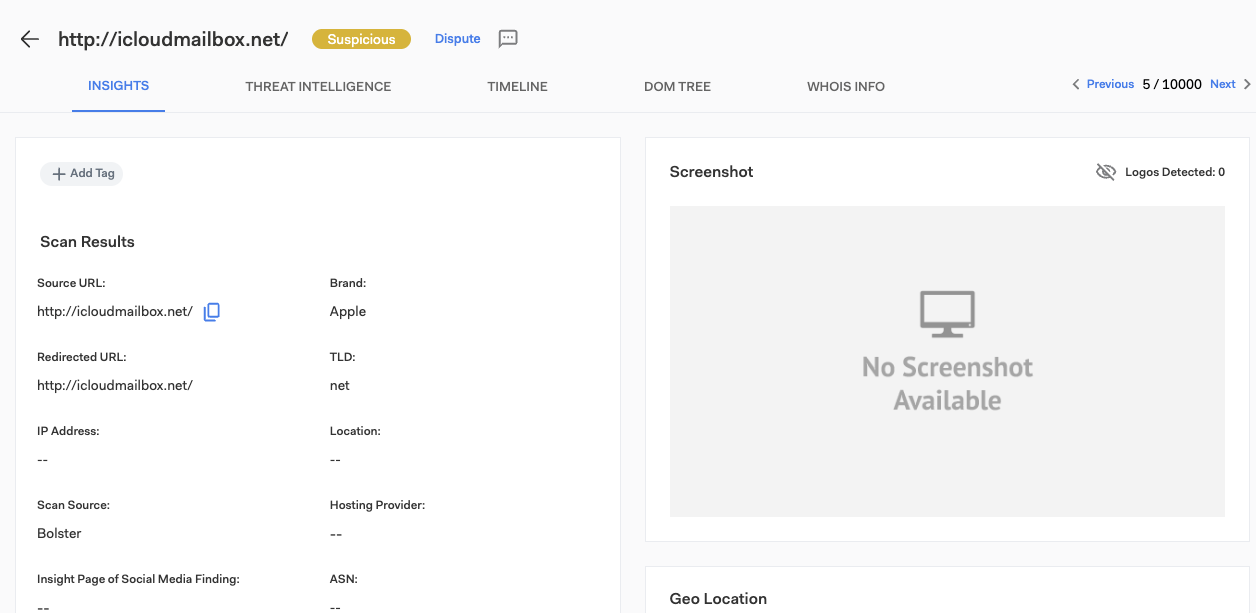
Click on a URL to go to the Insights page and review the detailed information. Use the Timeline to see the takedown action history. If you think it’s a legitimate URL, click the Dispute button at the top of the page. If you have any other relevant information for the Bolster SOC Team, leave them a message at the bottom of the page.
Step 2: Use the MX Records Filter
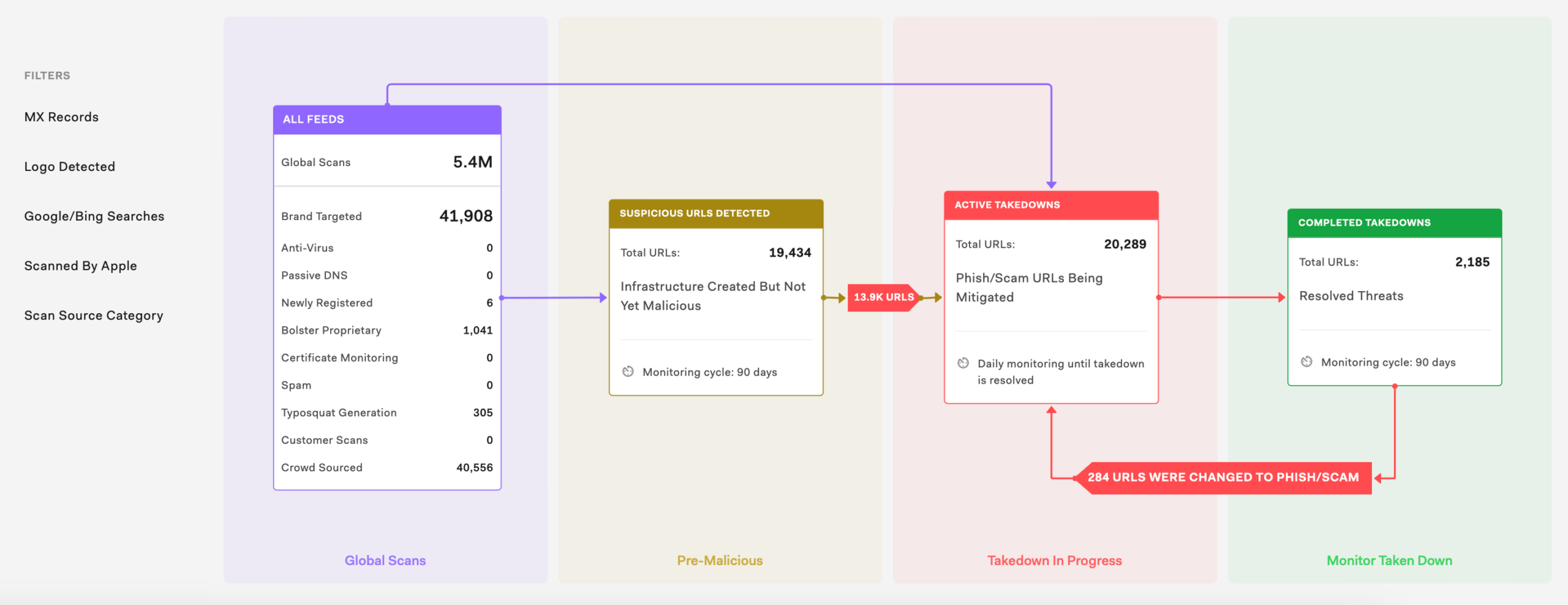
Go to the Web dashboard and make sure the desired time frame (based on a potential threat’s “first seen” date) is selected in the upper right. In the filters section, click MX Records to find parked sites that have an associated mail exchange (MX) record. Be sure to deselect any other filters. Click the Pre-Malicious,Takedown In Progress, or Monitor Taken Down box to see the specific URLs in that stage of the lifecycle.
An MX record means the domain is configured for email. Attackers could use it for email fraud even if the URL itself is clean. Bolster flags these URLs so you can review the threats, add more info, and potentially initiate actions internally.
If you spot any high-risk domains, consider working with your IT team to block emails coming from them so they aren’t used in email scams against your employees. You could also recommend key customers or partners look out for the sender domain in their own email systems.
Step 3: Use the Logos Detected Filter
Go to the Web dashboard and make sure the desired time frame (based on a potential threat’s “first seen” date) is selected in the upper right. In the filters section, click Logos Detected to find sites that might be infringing your trademarks. Be sure to deselect any other filters. Click the Pre-Malicious, Takedown in Progress, or Monitor Taken Down box to see the specific URLs in that stage of the lifecycle.
If trademark abuse protection is included in your Bolster license, you can request takedown of unauthorized sites using your marks. Trademark and/or copyright abuse takedowns typically take more time than simple phishing sites.
Step 4: Use the Google/Bing Searches Filter
Go to the Web dashboard and make sure the desired time frame (based on a potential threat’s “first seen” date) is selected in the upper right. In the filters section, click Google/Bing Searches to find unauthorized sites getting traffic from searches for your brand’s keywords. Be sure to deselect any other filters. Click the Pre-Malicious, Takedown in Progress, or Monitor Taken Down box to see the specific URLs in that stage of the lifecycle.
Threat actors may use SEO strategies to support their fraudulent sites or scams by optimizing for your brand’s keywords so it ranks higher in search results. Bolster detects these sites by running actual Google and Bing searches, and this filter will highlight them for you.
Step 5: Check Pre-Malicious Sites
Navigate to Attack Surface > Web > Monitor Pre-Malicious and review the list of sites. These are URLs that aren’t clearly safe or malicious, but which Bolster ismonitoring. You can use the Category column to narrow down the results to those of interest to your team, such as Sensitive Data, BEC, Domain Parking, or Cryptocurrency.
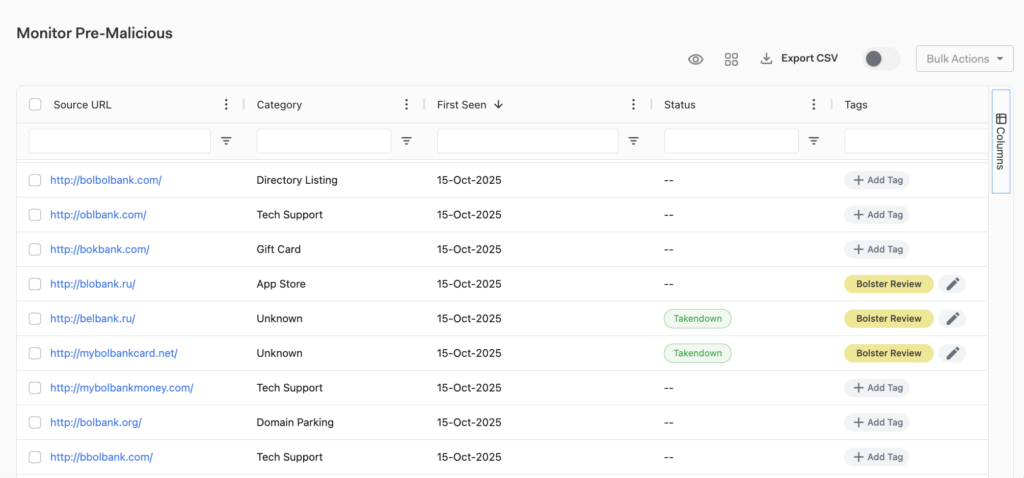
In particular, look for Bolster Review in the Tags column. Bolster has flagged these findings so your team can review them and help decide if they’re clean or malicious. To review a finding, click on the URL to go to the Insights page and review that information. Leave a comment for the Bolster SOC Team at the bottom of the page. Include your verdict or relevant information. Then, click the edit (pencil) icon at the top of the page to update the tags.