Web Module: Dashboard and Findings
Note: This article describes the new Web dashboard. For information about the legacy Web dashboard, see this article instead.
Module Summary
The Web module provides a complete lifecycle view of web-based threats, from early detection to takedown and post-removal monitoring. It helps your team answer three key questions:
- Are we actively monitoring?
- What threats exist right now?
- How effective are our takedown efforts?
The Web module gives you a complete view of the threat lifecycle:
- How threats are detected
- How and when action is taken
- What happens during takedown
- Whether threats return after removal
The Web module contains:
- Web Dashboard with two available views:
- Detection Overview
- Takedown Activity
- Detailed Findings – Lists of findings in each stage of the threat lifecycle.
For recommended workflows and how to prioritize findings, see Best Practices: Reviewing Web Findings.
Dashboard Summary
The Web dashboard provides a snapshot of threat detection activity across multiple intelligence feeds and monitoring systems.
Key components include:
- Attack bucket classification
- Infrasturcture intelligence
- Detection sources
- Monitoring filters
- Threat hosting insights
These elements help security teams quickly understand the scale and characteristics of detected threats.
The Web dashboard contains two sections:
- Detection Overview – Broad view of Bolster’s detection activities for your brand.
- Takedown Activity – Status and metrics for mitigation and takedown actions.
Detection Overview
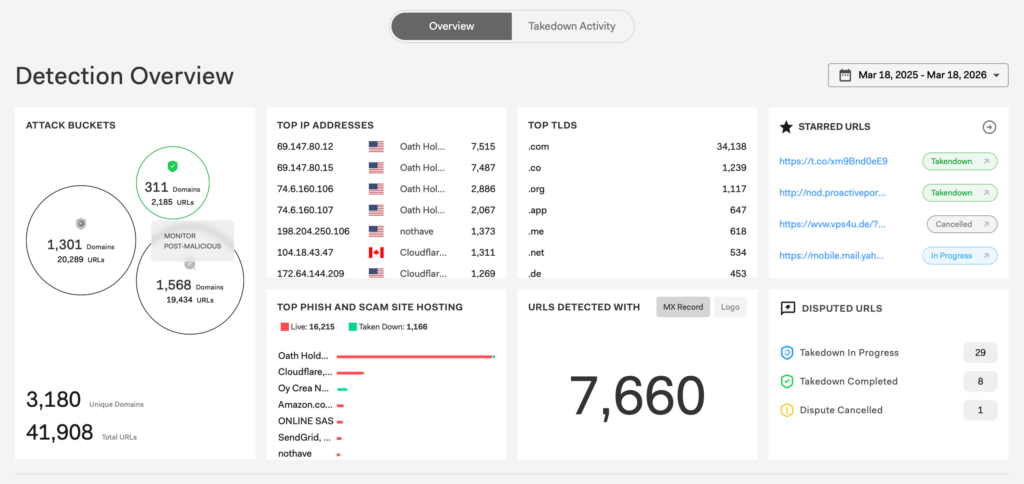
The Web dashboard’s default view is Detection Overview. This view organizes data into multiple widgets and data visualizations, addressing the following:
- Attack Buckets
- Infrastructure Intelligence
- Starred URLs
- URLs Detected with MX Record or Logos
- Disputed URLs
- Detection Lifecycle
Attack Buckets
The Attack Buckets widget categorizes URLs based on their threat status and mitigation stage. Categories include:
- Scan Pre-Malicious – Suspicious infrastructure detected but not yet confirmed malicious.
- Takedown Malicious – URLs confirmed as phishing or scam infrastructure and currently undergoing mitigation or takedown procedures.
- Monitor Post-Malicious – URLs previously confirmed malicious and taken down or mitigated. Bolster continues to monitor potential reactivation.
Select a circle in the widget to jump directly to the table list view of those URLs.
Infrastructure Intelligence
These three widgets reflect domain- and provider-level detection activity:
- Top IP Addresses – Shows the IP addresses hosting the highest number of detected phishing or scam URLs.
- Top TLDs – Shows the most frequently abused Top-Level Domains (TLDs) used by phishing campaigns.
- Top Phish and Scam Site Hosting – Shows the hosting providers most used to host phishing infrastructure. The chart breaks them down by live threats (currently active phishing sites) and those already taken down (infrastructure successfully mitigated).
Starred URLs
The Starred URLs widget allows you to save important URLs for quick access and monitoring.
To add a URL here, select the star icon [☆] next to any URL in tables or Bolster Insights. When selected, the star changes color to yellow and the URL appears in the Starred URLs widget. Click a selected yellow star to unselect it.
Save URLs using stars to efficiently track high-priority threats without searching through tables. Select the arrow in the widget to expand the list into a full table of all starred URLs.
URLs Detected With MX Record / Logo
This URLs Detected With widget shows the total count of URLs detected that have either a MX record or a logo from your brand. Select MX Record or Logo to toggle between the two counts.
Here’s what the two findings indicate:
- MX Record – Count of domains with MX records, meaning they can send or receive email and may be used for phishing campaigns or to manage victim responses.
- Logo – Count of URLs where your logo was detected, which may indicate phishing pages attempting to impersonate legitimate brands.
This information provides an additional signal about threats your organization may be facing and can proactively protect against. For example, consider protecting your organization against MX record threats by blocking outbound emails to those domains and informing key partners or clients of potential misrepresentation.
For a list of all the URLs in a particular stage, scroll down to the detection lifecycle widget flow chart (see below) and select the MX Record or Logo Detected filter on the left. Then click the box corresponding to the stage you want to see.
Disputed URLs
The Disputed URLs widget represents cases where someone from your team has challenged Bolster’s verdict about a threat, requesting an updated disposition. This allows you to track how Bolster is responding to your disputes.
The widget breaks down the count of disputes by:
- Takedown in Progress – Disputed as phish/scam and the SOC has initiated a takedown.
- Takedown Completed – Disputed as phish/scam and the threat has been successfully mitigated.
- Dispute Cancelled – Insufficient evidence for takedown, or another dispute occurred that updated the disposition from phish/scam to clean or suspicious.
Detection Lifecycle
Bolster aggregates detections from multiple intelligence sources. The detection lifecycle widget shows how many URLs were found by each detection method, and where the URLs are in the mitigation workflow. It follows the lifecycle of a fraudulent domain, from the detection of a suspicious URL to the takedown of the threat. To see a list of the URLs in each stage, click the corresponding box.
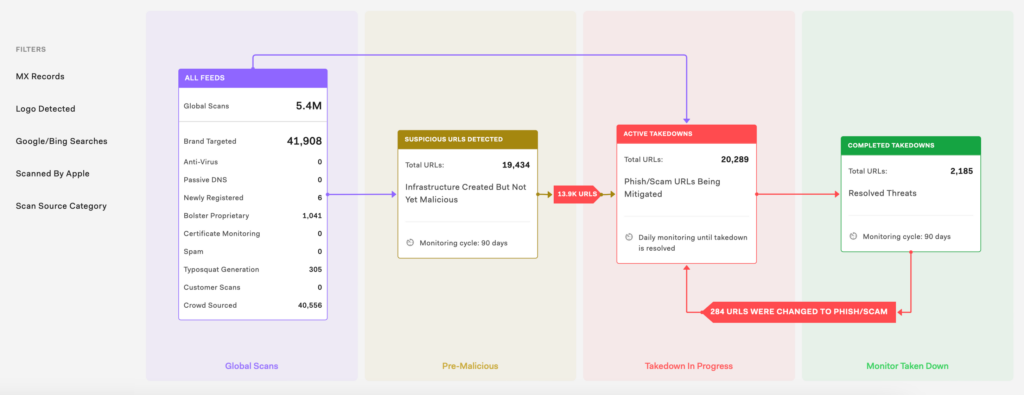
The detailed flow chart shows counts of the following:
- All Feeds – All scans completed by Bolster including global scans and scans specifically targeted for your brand. The number of findings is shown for scans and the detected threat type.
- Suspicious URLs Detected – Pre-malicious URLs that are monitored for 90 days.
- Active Takedowns – URLs with takedowns in progress and monitored every day until takedown is completed.
- Completed takedowns – URLs that have been taken down and are monitored for 90 days to make sure no threat re-emerges.
You can filter the data in the flow chart by one or more of the following:
- MX Record – URLs with an associated Mail Exchange record.
- Logo Detected – URLs with a logo detected, possibly infringing on your trademarks.
- Google/Bing Searches – URLs detected based on Google and Bing searches, representing SEO possibly being used for your brand keywords.
- Scanned by [Your Brand] – URLs that were found in scans done by your team.
- Scan Source Category – URLs from one specific category such as Newly Registered, Bolster Proprietary intel, and more.
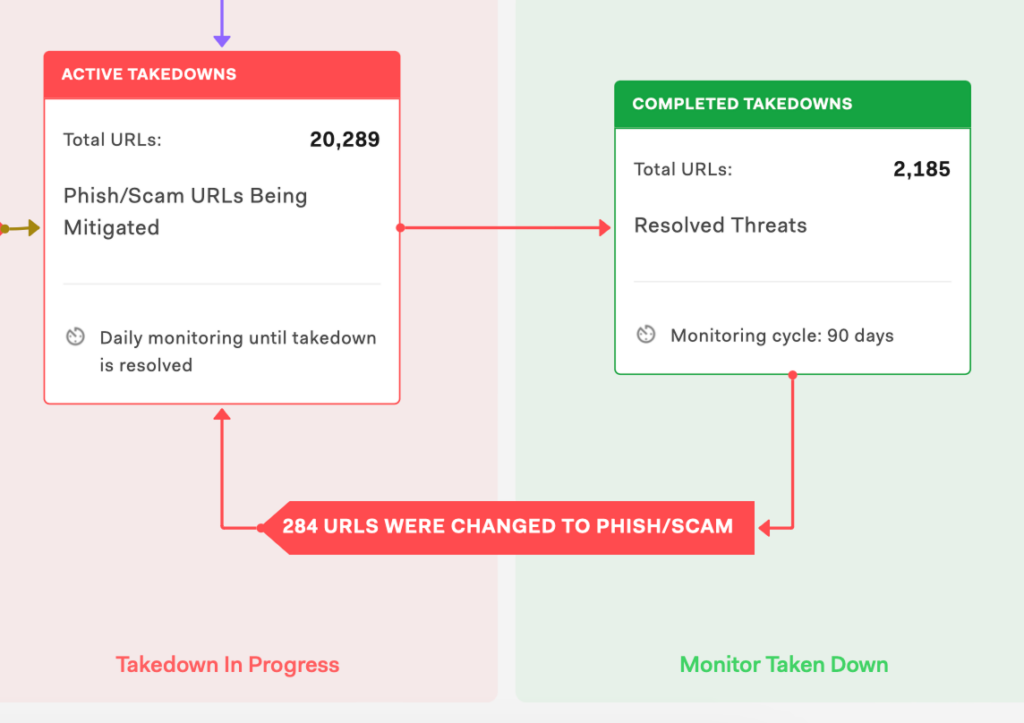
Arrows between two stages of the lifecycle display the number of URLs that changed status between those stages. This typically occurs when:
- A suspicious URL becomes a confirmed phishing or scam site.
- A previously taken-down threat re-emerges and becomes malicious again. For more about this, see Threat Re-Emergence below.
At the top of the widget is a live count of automatic rescans. Bolster continuously performs rescans of previously detected URLs and domains to identify changes in threat status.

Threat Re-Emergence
The detection lifecycle provides visibility into URLs that were previously mitigated but have become malicious again. This helps you track persistent threats and understand how often attackers reuse infrastructure after takedown.
How to see recurring threats:
- Lifecycle arrows show how many URLs transitioned back to Phish/Scam
- Clicking an arrow opens a filtered table view of those URLs
- The table shows current status and past dispositions (e.g., Clean → Phish)
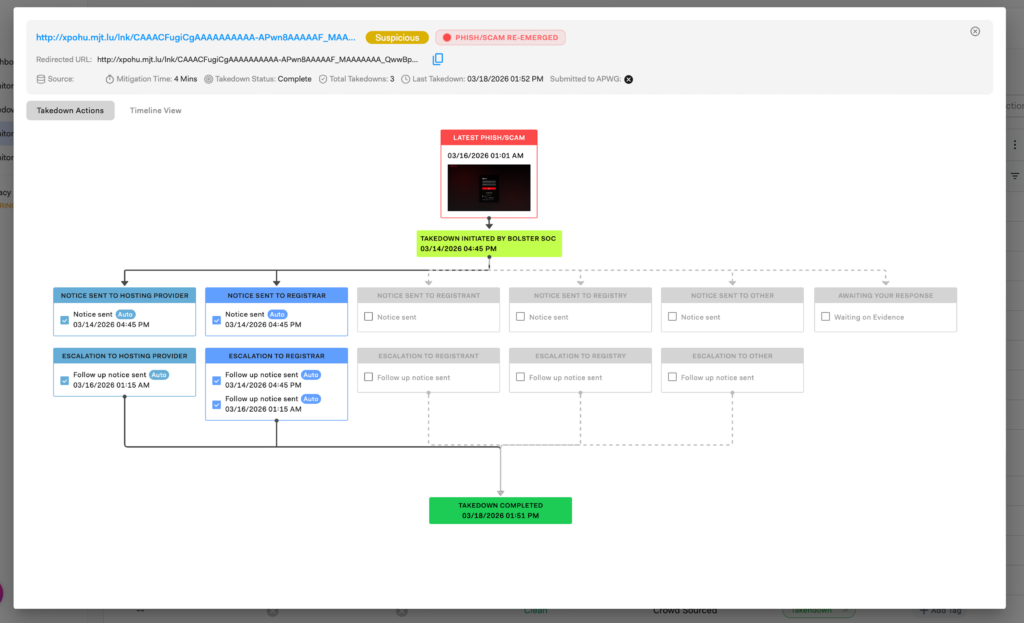
Clicking a URL’s status opens a detailed record of takedown actions, including:
- Actions taken by the Bolster SOC
- Notices and escalations to providers
- A timeline view of detection, takedown, and re-emergence
Takedown Activity
In addition to the Overview, the Web dashboard has a dedicated, comprehensive Takedown Activity view that shows how threats are being mitigated across your environment. To switch to this view, select Takedown Activity at the top of the screen.

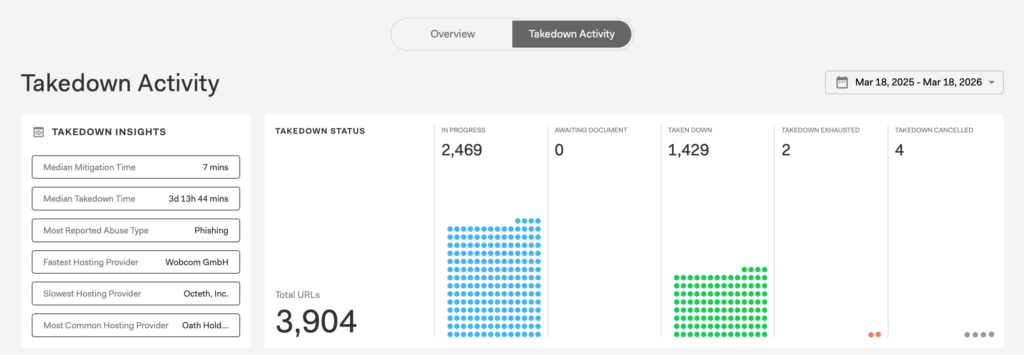
The Takedown Activity view includes widgets with detailed data about takedowns for your brand, including:
- Takedown Insights – List of takedown data, including the reported abuse type, median mitigation time, and more.
- Takedown Status – Data visualization showing the number of URLs Bolster has marked for takedown across stages.
Use the Takedown Activity view to track takedown progress, measure response efficiency, and identify patterns across infrastructure, providers, and threat types. It answers key questions about threat mitigation, such as:
- How many threats are currently being mitigated?
- How long does it take to take down phishing infrastructure?
- Which providers or platforms are most involved in takedowns?
- Where are bottlenecks in the takedown process?
Takedown Insights
The Takedown Insights widget provides key performance and trend indicators to help evaluate mitigation effectiveness.
Metrics include:
- Median Mitigation Time – Median time it takes to begin mitigation and how fast Bolster responds after a threat is detected.
- Median Takedown Time – Median time required to fully resolve (take down) a threat.
- Most Reported Abuse Type – Most common category of abuse (e.g., phishing).
- Fastest Hosting Provider – Provider with the quickest average takedown time.
- Slowest Hosting Provider – Provider with the longest takedown time.
- Most Common Hosting Provider – Provider most frequently associated with detected threats.
Use the Takedown Insights widget to identify operational efficiency and external dependencies affecting takedown performance.
Takedown Status
The Takedown Status widget summarizes the current state of all URLs in the mitigation pipeline. Possible states include:
- In Progress – Actively undergoing takedown actions.
- Awaiting Document – Takedown is pending required documentation or approvals.
- Taken Down – Successfully mitigated threats that are no longer active.
- Takedown Exhausted – All mitigation attempts have been completed without success.
- Takedown Cancelled – Takedown requests that were stopped or withdrawn.
Takedown Activity Matrix
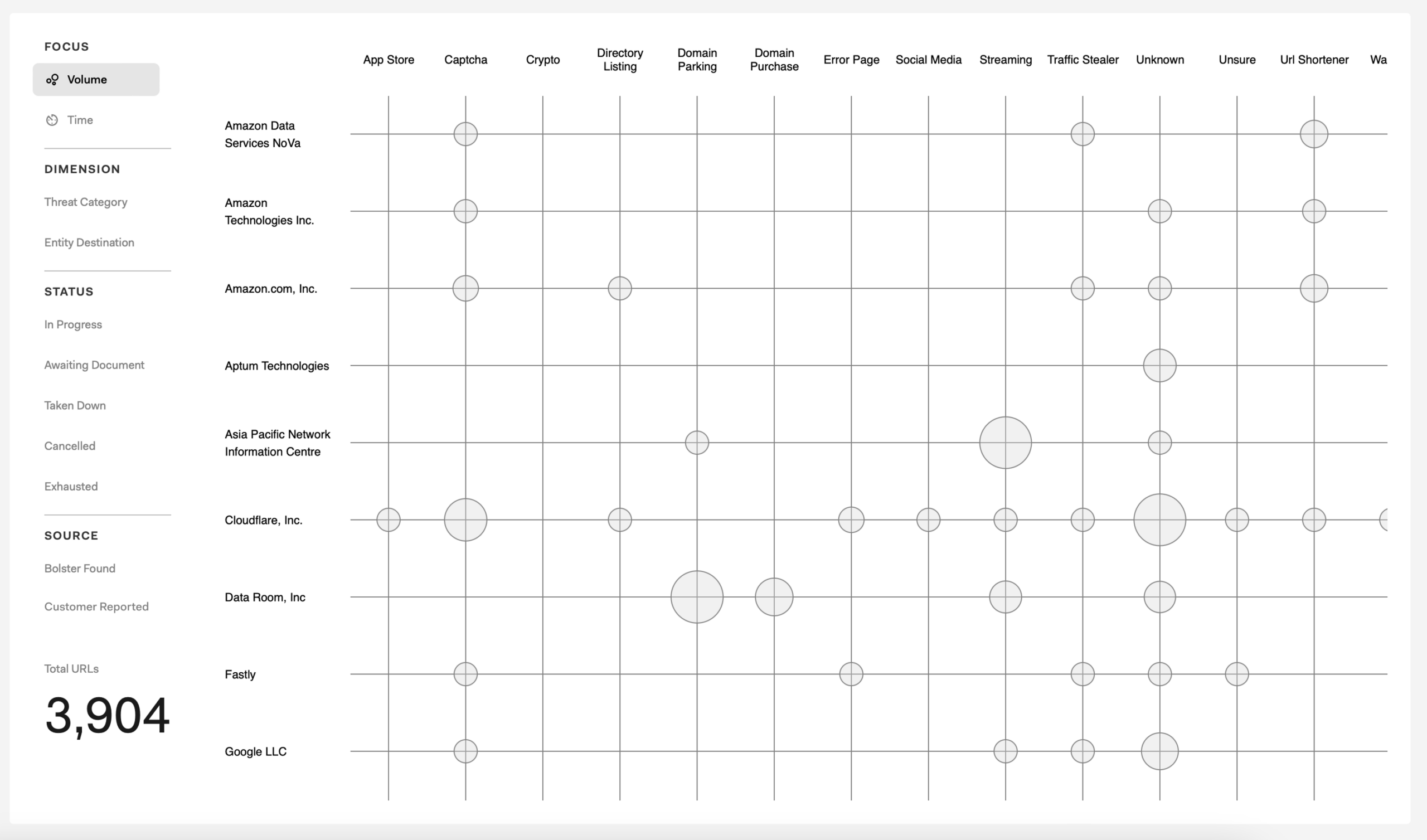
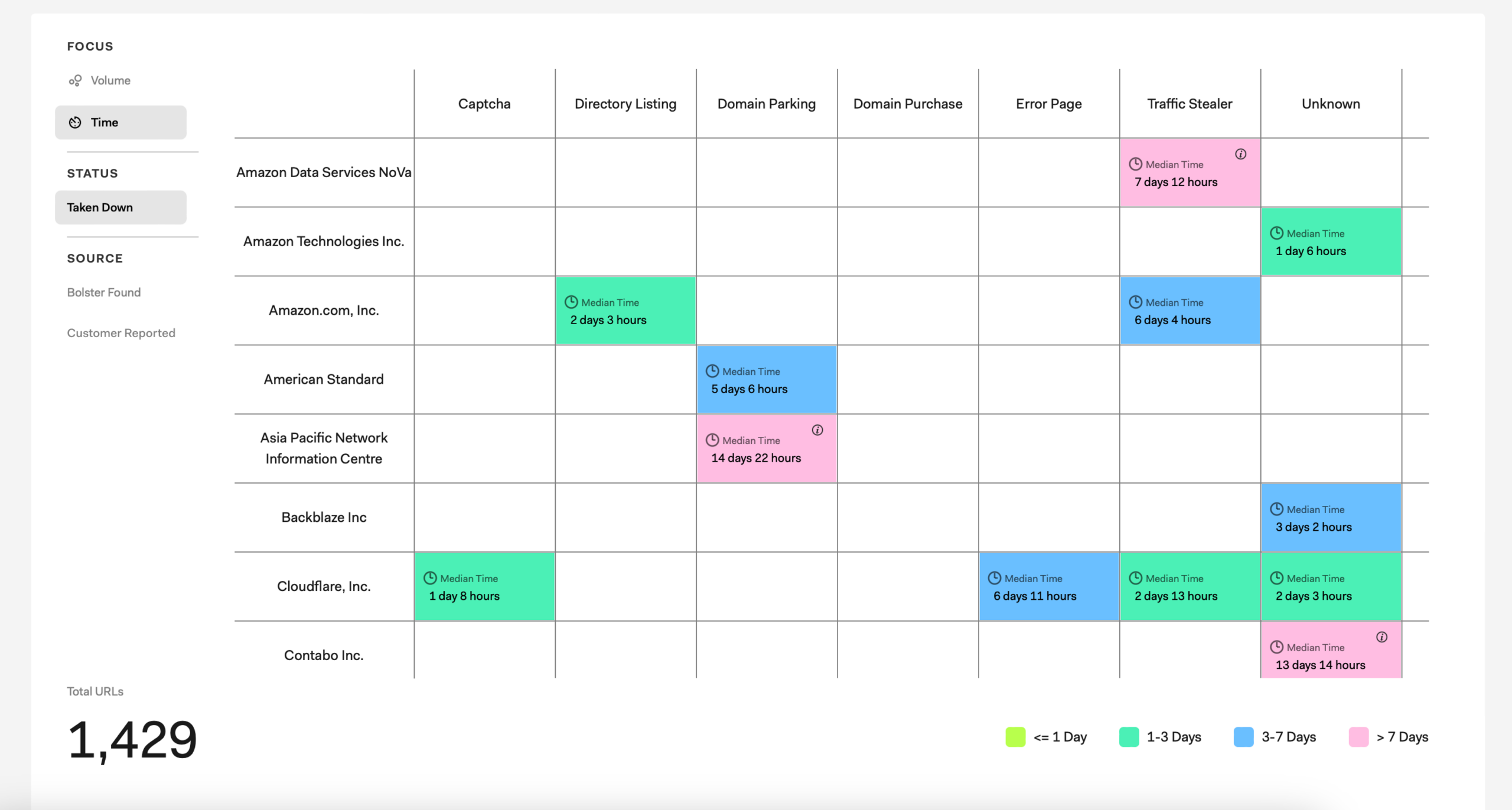
The main visualization is an interactive matrix (bubble chart) that shows how takedown activity is distributed across different dimensions.
Here’s how the matrix is organized:
- Rows (Y-axis) – Hosting providers associated with the URLs.
- Columns (X-axis) – Threat categories including:
- App Store
- Crypto
- Domain Parking
- Social Media
- Traffic Stealer
- URL Shortener
- Circles (bubbles) – Each circle represents a group of URLs.
- Circle size – Indicates the volume of URLs within that category.
The left side control panel provides filters and other options to refine the analysis. These include:
- Focus controls
- Volume – Displays the number of URLs (default view).
- Time – Switches the visualization to focus on time-based metrics (e.g., takedown duration).
- Volume – Displays the number of URLs (default view).
- Dimension filters
- Threat Category – Filters by type of threat (e.g., phishing, crypto scams).

- Entity Destinations – Filters by infrastructure or provider associated with the URL.

- Threat Category – Filters by type of threat (e.g., phishing, crypto scams).
- Status filters for URL takedown status:
- In Progress
- Awaiting Document
- Taken Down
- Cencelled
- Exhausted
- Source filters
- Bolster Found – URLs detected by Bolster’s scanning system.
- [Brand] Reported – URLs submitted by your team.
Use the Takedown Activity view to:
- Monitor real-time takedown progress.
- Identify delays or bottlenecks in mitigation.
- Understand which providers require escalation.
- Prioritize high-impact threats based on volume.
- Track overall takedown efficiency over time.
Detailed Findings
While the Web dashboard is a snapshot of Bolster’s web defense activities for a selected time period, you can use the left navigation bar to access table list views of all findings and drill into individual threats.
These views are organized across three stages of the threat lifecycle:
- Monitor Pre-Malicious – Domains deemed suspicious or clean. You can review this list and double-check the verdicts.
- Takedown Malicious – Sites identified as malicious. Bolster automatically triggers takedown actions, so no action is required. You can review this list for false positives.
- Monitor Post Malicious – Sites that have recently been taken down and are being monitored for re-emergence. You can review this list to track progress and stay aware of activity.