Submitting Takedown Requests in Bolster
Overview: Takedown Requests and Disputes
Submitting takedown requests allows security teams to remove phishing and scam URLs by having Bolster issue notices to relevant entities, such as registrars and hosting providers.
When Bolster detects a phishing or scam URL, users don’t need to take action. Bolster does it on the team’s behalf, initiating a takedown automatically or having a Bolster SOC analyst issue one manually.
If Bolster determines that a URL is clean or merely suspicious, a takedown is not initiated. If your security team believes the URL should be marked as phishing, the team can dispute Bolster’s verdict. Disputing the verdict automatically initiates a takedown request.
This article explains how takedown requests work in the dispute workflow and how to dispute verdicts for individual or multiple URLs.
Accessing the Insights Page to Dispute a URL
Accessing the Insights page to dispute a URL lets security teams review URL details and request further action, including disputing the verdict if it has not already been disputed.
Access the Insights page to dispute a verdict by clicking on a URL in one of the following locations:
- Web module
- Monitor Pre-Malicious
- Takedown Malicious
- Monitor Post-Malicious
- Social Media module
- Live Detections
- Ignored
- Abuse Mailbox module
- Dashboard
- Targeted Malicious
- Scan URL report
Disputing a Single URL for Takedown
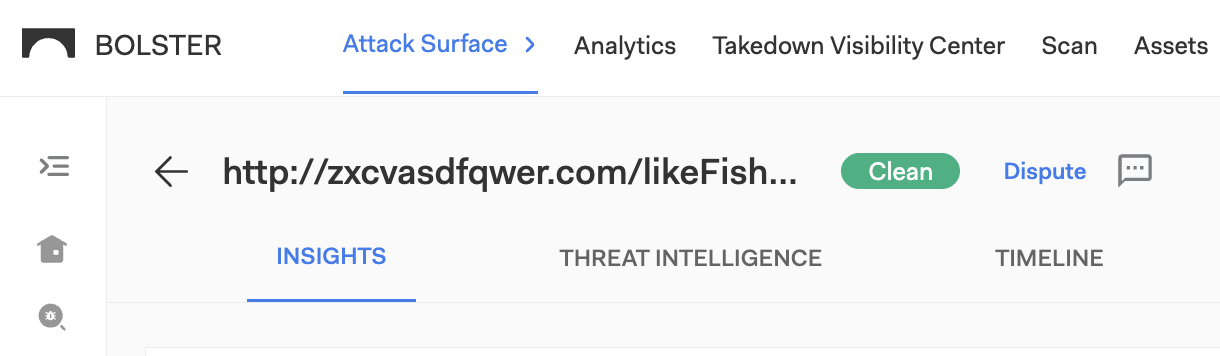
Disputing a single URL for takedown is done directly from the Insights page using the Dispute button. Follow these steps to dispute one URL and submit a takedown request.
- Navigate to the Insights page for the URL.
- Select the Dispute button at the top of the Insights page. This action is only available if the URL has not already been disputed.
- Complete the Dispute Disposition form with relevant details.
- Click Submit.
- The disposition updates and a takedown ticket is created automatically.
Disputing Multiple URLs for Takedown (Bulk Action)
Disputing multiple URLs for takedown at once uses the bulk action tool available in list views. Security teams can efficiently dispute several URLs using the following steps.
- Navigate to a URL list view such as Monitor Pre-Malicious (Web module) or Live Detections (Social Media module). If you’re in the Web module, make sure the grouped view toggle is switched off.
- Select multiple URLs by clicking the checkbox to the left of each row.
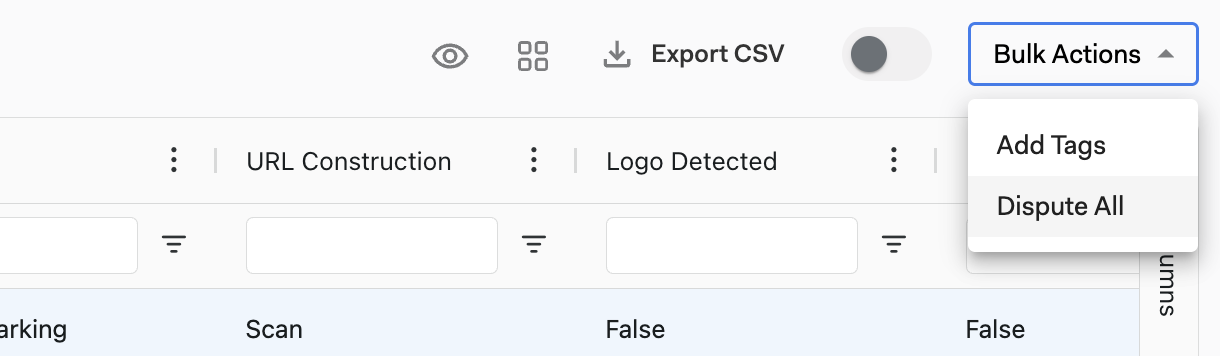
- Open the Bulk Actions menu and select Dispute All.
- Complete the Dispute Disposition form. It applies to all selected URLs.
- Click Submit to update dispositions and create takedown tickets.
Requesting Takedowns from the Scan Page
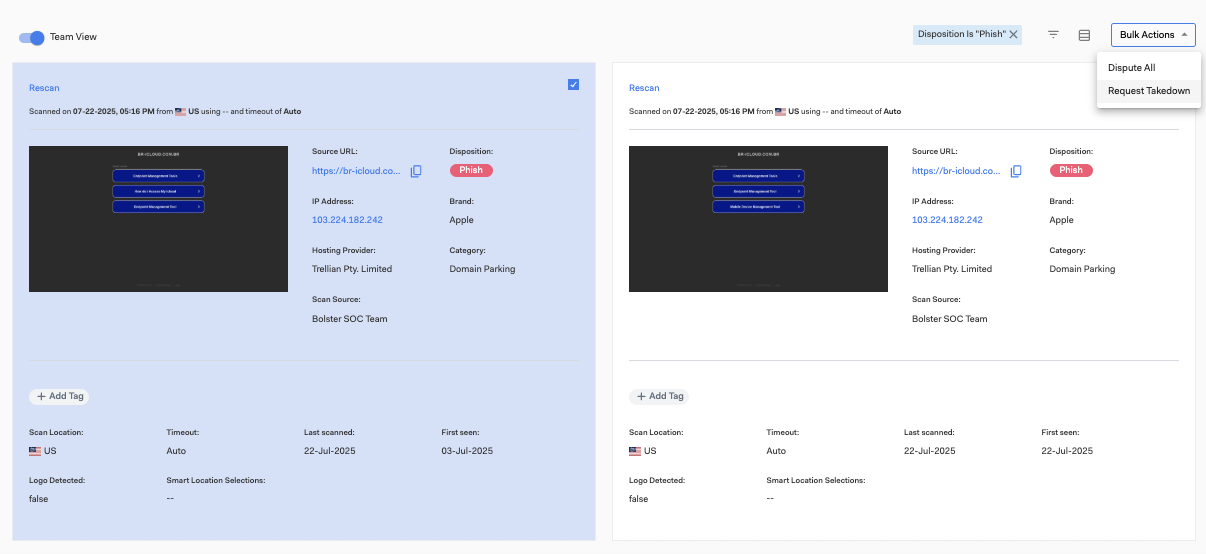
Requesting takedowns from the Scan page allows security teams to confirm phishing findings and submit removal requests. After scanning URLs directly, any newly found to be phishing or a scam will automatically generate a takedown request. But teams can confirm this finding and provide additional information by submitting a takedown request directly using the following steps.
- Enter the website URLs you want to scan on the Scan page.
- Click Scan to perform the check.
- Review the scan results for each URL.
- Select any URLs flagged as phishing or scam.
- Open the Bulk Actions menu and select Request Takedown.
- Complete the form for all selected URLs.
- Click Submit to send the request.
If a URL is marked as clean or suspicious, the disposition must be disputed first.
Source URL vs Destination URL
On the Bolster platform, Source URL and Destination URL serve distinct but complementary roles in how threats are tracked and mitigated.
- Source URL – the originally discovered entry point for a threat (e.g., a phishing link). Monitored and rescanned over time.
- Destination URL – the final landing page users are redirected to, where the malicious content (e.g., credential harvesting or scam page) is hosted. Takedown focuses on this URL.
Takedown actions are performed specifically on the Destination URL because this is where the harmful activity resides and where enforcement with hosting providers is most effective.
Meanwhile, Bolster continuously monitors and rescans the Source URL over time. This is critical because threat actors often reuse the same distribution infrastructure (e.g., shortened links, redirect chains, or compromised domains). They simply update the destination to a new malicious page after a takedown. By maintaining visibility into the Source URL, Bolster can detect reactivation attempts and quickly identify when new malicious destinations are introduced, enabling faster response to recurring or evolving phishing campaigns.
Tracking Takedown Status
You can track the progress of a takedown in Takedown Malicious table using the Status column.
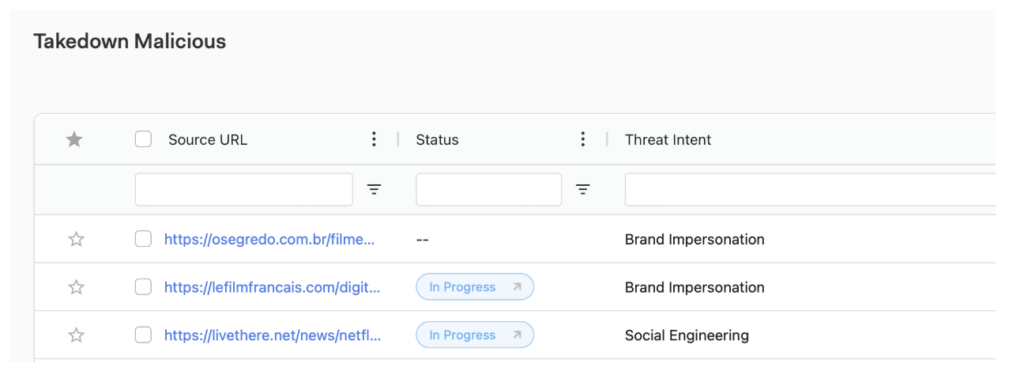
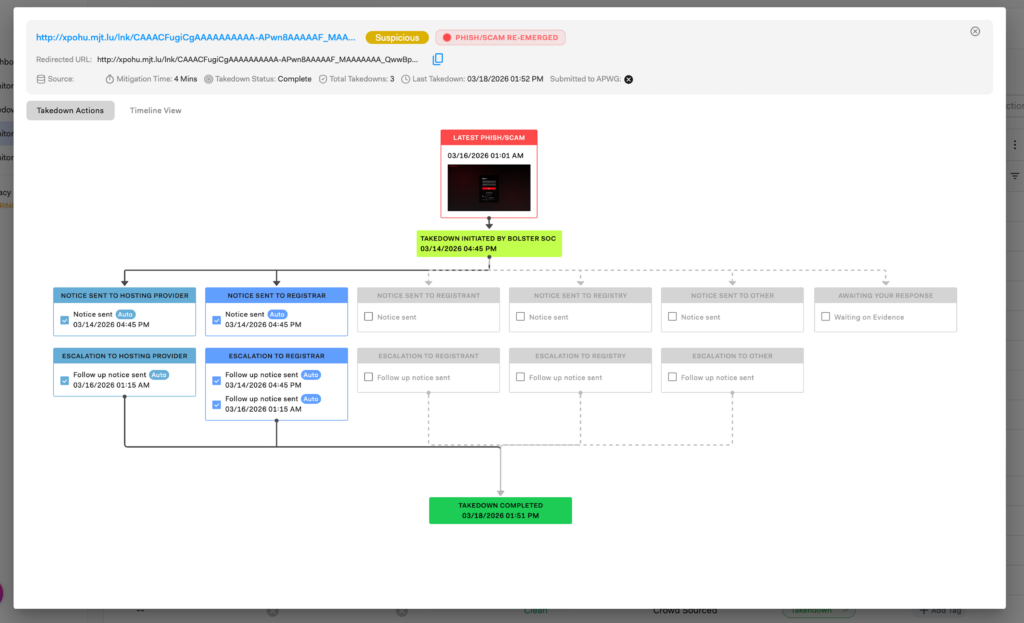
Click on a status in the Status column such as “In Progress” to open a detailed view showing all Bolster SOC enforcement actions. These include notices sent, escalations, and the full timeline of events.
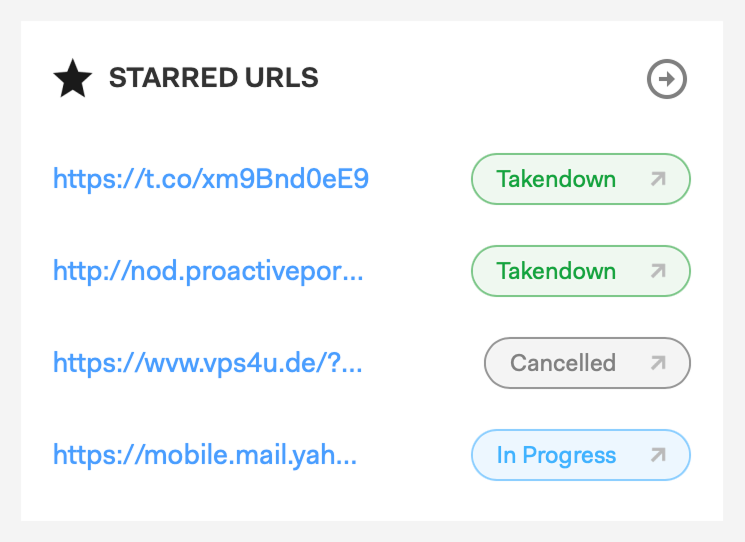
If you’ve starred a URL, for example because you’ve disputed it, you can quickly access its takedown status from the Starred URLs widget on the Web dashboard. This allows you to monitor important threats without navigating through the table.